Put Discord In Developer Mode 
Stolen from: https://www.howtogeek.com/714348/how-to-enable-or-disable-developer-mode-on-discord/
Much like developer mode on Android, Discord's developer mode enables certain additional information in the Discord client, such as channel and message IDs for your server. If you're developing a bot to monitor and post in a certain channel, for instance, you'll need this information to point the bot in the right direction.
Enabling and Disabling Discord Developer Mode on Windows and Mac 
If you're using the Discord desktop app on Windows or Mac, or if you're using the web client in your web browser, you can enable or disable Discord developer mode by following these steps.
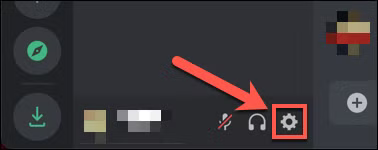
To start, open Discord and sign in. Once you're signed in, select the settings icon in the bottom-left corner next to your username.
In Discord's settings menu, select the "Appearance" option in the menu on the left.
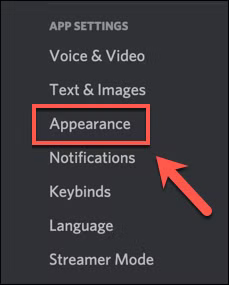
In the "Appearance" menu, you'll see settings that impact how Discord appears to you, with theme options, message sizes, and accessibility settings.
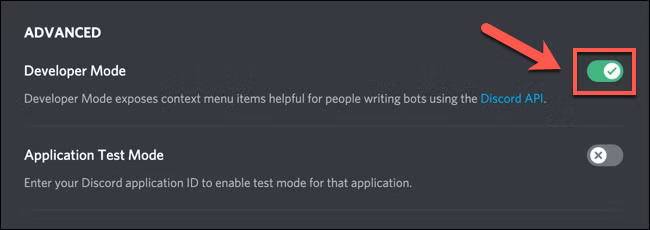
Scroll down to the bottom, then select the slider next to the "Developer Mode" option. If the slider is green with a checkmark, developer mode is enabled. If it's gray with an "X" symbol, developer mode is disabled.
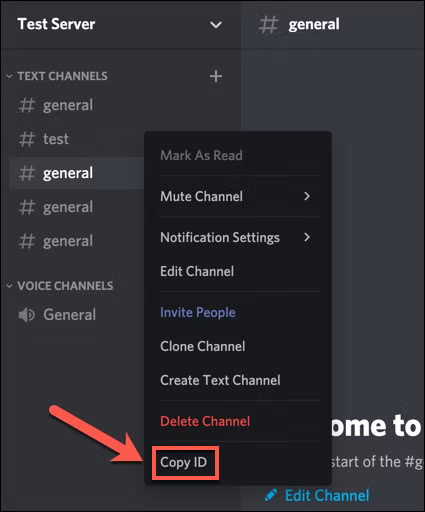
With developer mode active, you can copy ID values for users, channels, and servers by right-clicking the server name, channel name, or username and selecting the "Copy ID" option.
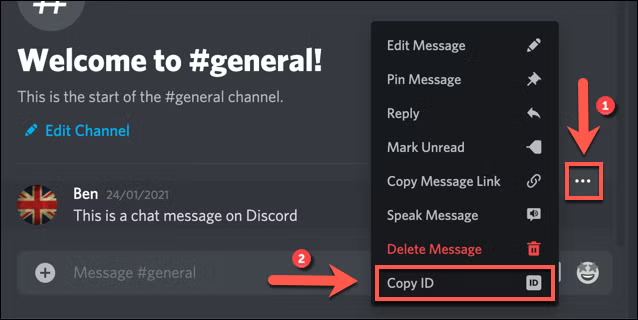
To copy a message ID, hover over any posted message, then click the three-dot menu icon. From the menu, select the "Copy ID" option.
Enabling and Disabling Discord Developer Mode on Android, iPhone, or iPad 
If you prefer to use Discord on a mobile device (such as an Android, iPhone, or iPad), you can enable and use developer mode in a similar way to desktop users.
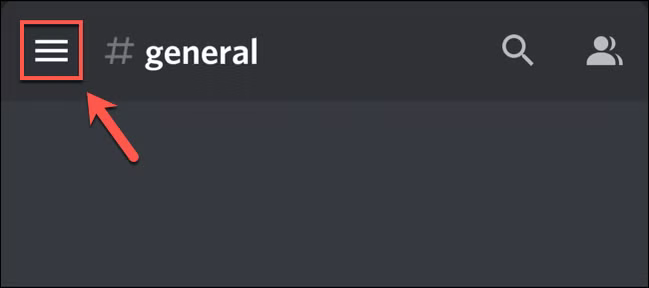
To start, open the Discord app on your device and sign in. Tap the three-line menu icon in the top-left corner to view the menu panel.
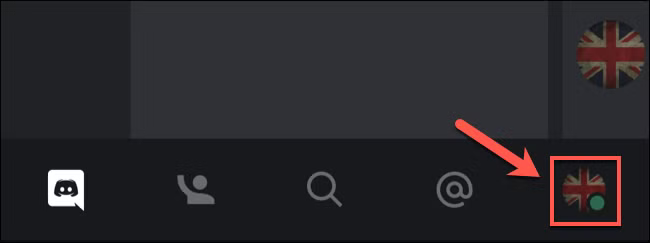
In the menu, tap your profile icon in the bottom-right corner.
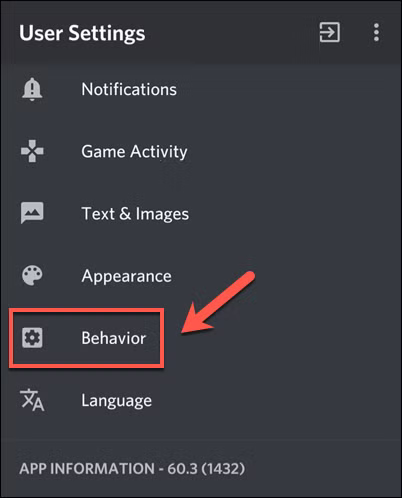
From here, you'll be able to view your account and app settings in the "User Settings" menu. Swipe through this menu, then tap the "Behavior" option.
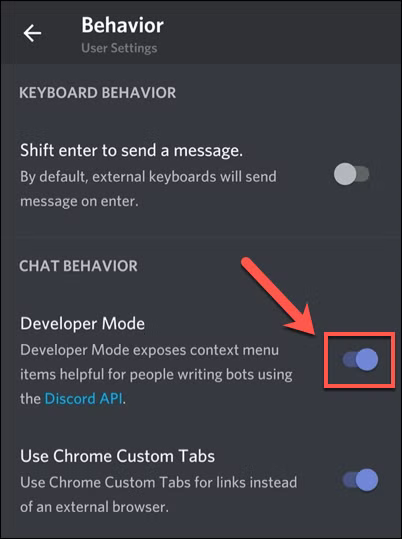
In the "Behavior" menu, tap the slider next to the "Developer Mode" option. If the slider is gray, the setting is disabled. If you want to enable developer mode, make sure that the slider is blue.
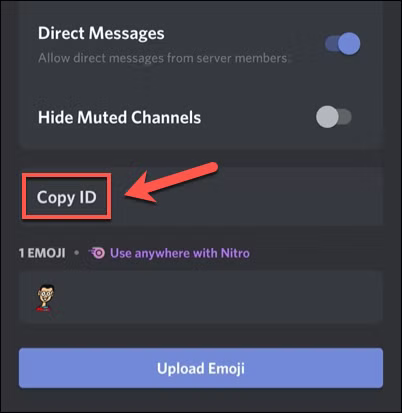
With Discord developer mode active, you'll be able to copy IDs for servers, channels, users, and individual messages. To do this for servers, tap the server name, then select the "Copy ID" option.
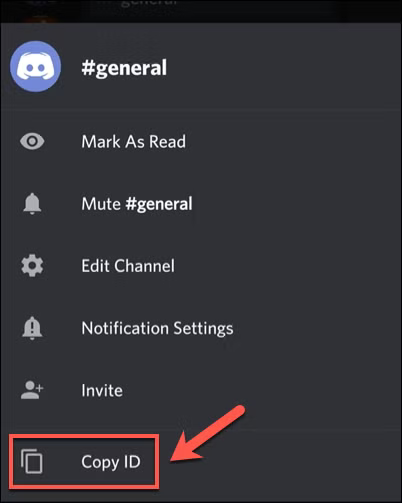
For channel names and messages, tap and hold the name or message until the settings panel appears underneath. From the panel, tap the "Copy ID" option.
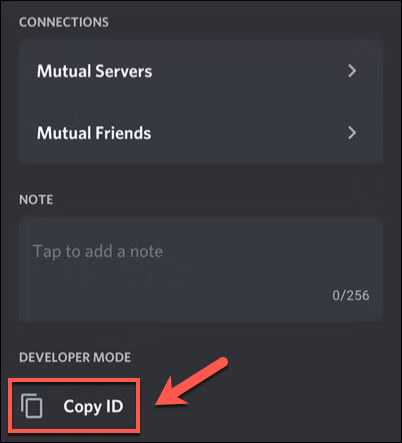
For usernames, tap the name in the channel list (or in your server's member list). At the bottom of the settings panel, select the "Copy ID" option.